Intro
Docker is the absolute whale in the containerization space…I won’t do this again, I promise.
I’ve dabbled with it before here and there but I know enough to know that I actually don’t…
So I’ll be following the Docker Curriculum guide and various YouTube vids.
How to Use
If you need a quick reference, here’s the short of it, otherwise go to official documentations.
- Install Docker CLI and Daemon (or Docker Desktop client if inclined).
- Make sure the daemon is running.
- Then it’s time for Writing a Dockerfile.
- Then build your image. Might need
docker-composeif you have databases and or other services. - Then run your image to test.
- Push to DockerHub if needed.
What is Docker?
It’s an opensource project for deploying and running software inside containers. This is an abstraction level above the os of the machine. Docker only runs, natively, on Linux machines. This abstraction is known as Containerization
Docker Daemon and Client
- The Docker Daemon is the background service running on the host, in most cases your machine, that manages building, running and distributing Docker containers.
The daemon runs on the host OS, and is what the Docker clients talk to.
daemon is a term for a persistent background process.
- Docker Client , often a CL tool, that allows us to interact with Docker, the daemon to exact. There are various clients including the default Docker Desktop client for Windows.
Docker only runs on Linux machines, so on Windows and macOS it slips in a lightweight Linux VM which the containers run within. This is why Docker's sometimes faster on a Linux machine.
When To Use Docker?
This article does a dive into when to use it and when not to. Link.
What’s a Container?
containers allow us to bundle a program along with all its dependencies together in an encapsulated environment.
Containers vs VMs
Containers don’t have the heavy overhead commonly associated with VMs, making them more efficient and portable for sharing and deploying programs, by reducing the resources needed from the underlying system.
They're actually processes with *walls* around them instead of full virtual OSs, and Docker is the tools needed to build these walls.
VM tangent
A vm app runs inside the guest OS, which is run on virtual hardware powered by thehost machine (the actual computer and its hardware).
A VM is great if you need FULL isolation of the applications, to live in their own walled garden. However, these apps can be negatively affected by the host OS, and the computational overhead is expensive and non-trivial.
Containers abstract the environment the apps need from the one they actually run on, uncoupling them from it and making deployment much easier by making predictable environments that run anywhere.
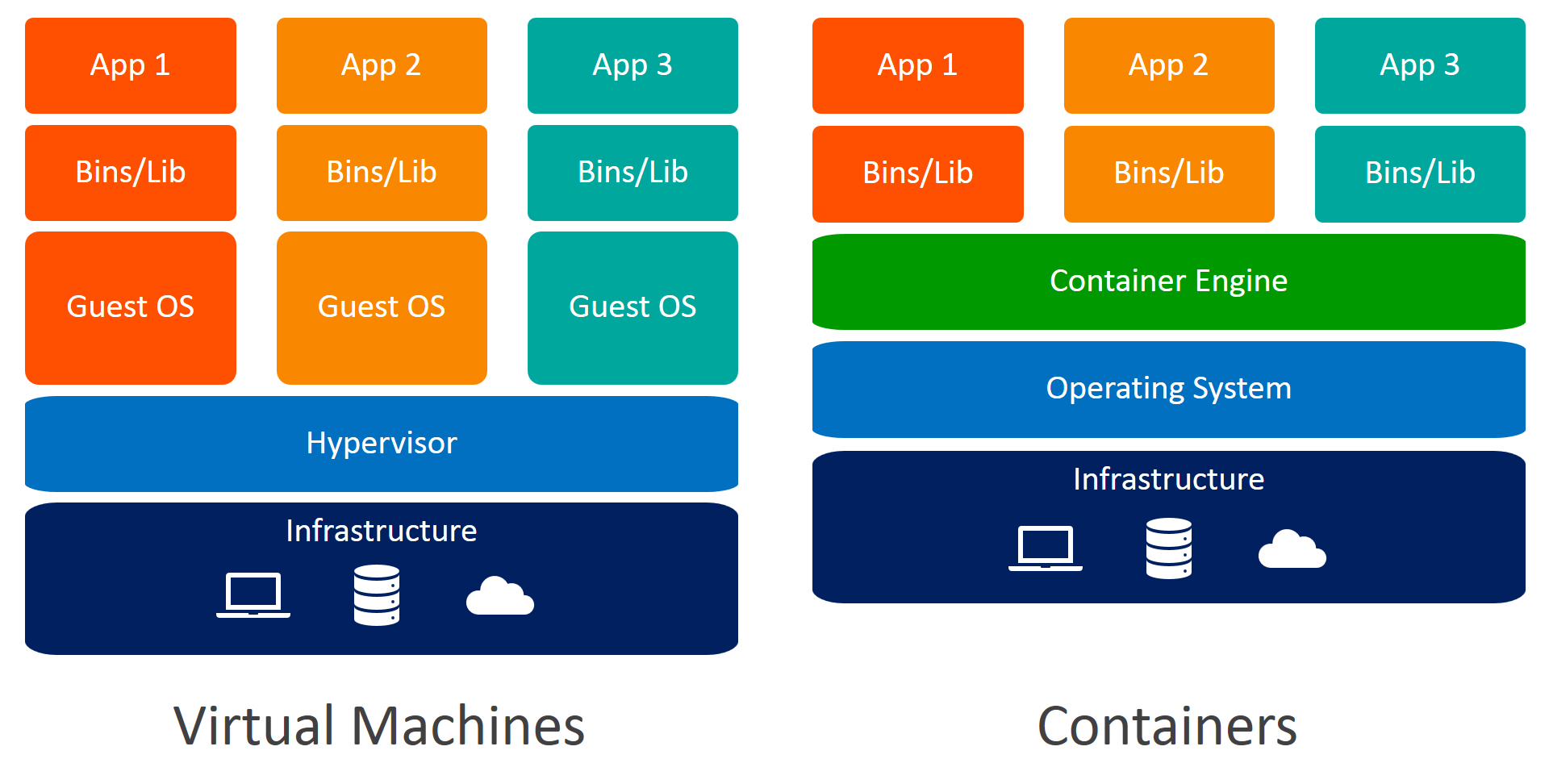
// The previous illustration simplifies a lot but it’s not too far off.
The Parts
Dockerfiles
Whereas, dockerfiles are the files (blueprints) that outline the specific commands needed to produce the Docker Image. Since these commands are declared, this allows for reproducibility and portability. A Dockerfile that’s unchanged, will always produce the same Docker Image.
Check out Writing a Dockerfile.
Images
dockerimages are the built Dockerfiles. Think of them like the “compiled” version of your Dockerfile ready to be run and turned into a container. They contain all the information needed to set up the container and for your app to run within it.
Images have tags that are used to specify the version (but can be named anything really) and the default is “latest”.
Types
- Base images have no parent image, usually images with an OS like ubuntu, Busybox or Debian.
- Child imagesthese are built on top of base images and add additional functionality and features.
- Official images are images that are officially maintained and supported by Docker themselves. These are typically one word long. Examples include the
python,ubuntu,busyboxandhello-worldimages as found on Docker Hub. - User images are created and shared by users, and are also built on Base Images. Typically, these are formatted as
user/image-name.
Contents
The images may contain a plethora of things, but here are the most common.
- OS
- Dependencies
- Project code
Docker images aren’t actual file or data type, they’re a snapshot (hence the name), of the libraries and dependencies needed to run the app in a container. The instructions to recreate this image are in a Dockerfile.
Images are immutable, meaning anything changed to the container doesn’t affect the image. To change an image, the source code or Dockerfile or both need to be updated then the Dockerfile needs to be rebuilt to produce a new image.
Containers
Images alone don’t do anything they’re just a file on disk, they need to be run as a container.
The container is the isolated environment that runs your service/code and can be scaled accordingly.
Container Independence and Isolation
Since each container is its own process and environment, they’re independent of other containers. Meaning we can run many containers from the same image.
Container’s are also stateless, meaning once it’s shut down, all the state is lost. This is by design, as it makes them very portable and be run every where.
Environment Variables and Secrets
During Dev
Dockerfile
Non-sensitive variables can be written in the Dockerfile. See Writing a Dockerfile > ENV.
Using a .env file
For local development ONLY, you can store your secrets in .env and Docker Compose will pick up on them using the environment, env_file, and secrets fields.
During build command
For API keys and whatnot, you can pass them during the run command:
$ docker run -e API_KEY=<value> imagename:tagBut this is only good for local developments as the inspect command can expose them!
Secrets
It’s best to use some secrets manager like Docker Secrets or external vaults. Especially if working with pure Docker or Docker Swarm.
Breakdown
- Docker Swarm Secrets: Docker Swarm encrypts secrets during transit and at rest. They are mounted as unencrypted files inside the container at
/run/secrets/<secret_name>in an in-memorytmpfsfile system - External Secret Managers: tools like AWS Secrets Manager or Azure Key Vault. Your application container boots up, authenticates with the Vault API using an IAM role or token, and fetches its secrets directly into memory at runtime.
Example of a docker-compose.yaml using Docker Swarm
version: '3.8'
services:
  app:
    image: my-app:prod
    secrets:
      - prod_api_key
secrets:
  prod_api_key:
    external: true
Secrets define outside the file.
Working With Kubernetes
Kubernetes handles this very well, and does so via two native objects, the ConfigMaps
and Secrets.
Layers
Images aren’t singular blobs, instead they’re composed of layers. Each layer’s a change brought on by a command in the Dockerfile. // You can see these layers built during `docker run` and watch the filesystem's change.
These layers include
- App code
- Dependencies and packages
- Runtime
- System libraries
- Base OS
Not all commands create new layers. For example,RUN,COPY, andADDdo but notENV,CMD, andEXPOSE.
Docker caches these layers, so when rebuilding the image, if a layer doesn’t change, Docker doesn’t recreate it instead using the cached layer. This is also observed when building and running.
Instruction Order Matters
Due to layer caching, the order of commands in Dockerfiles matters. For example, consider installing dependencies.
It’s best to copy your dependencies first, then install them, then copy your app code. Because your source code is likely to change far more frequently than your dependencies.
Put things that don't change frequently at the top.
Docker Hub
An online repository of Docker images to pull from and push to. Users can share useful and neat images for others to use. Check out.
Modes
- Detached mode lets a container run detached from the terminal instance that was used to spin it up, so when that terminal is closed the container continues running. Use the
-doption with theruncommand to flag a container as detached.
Volumes
Provide persistent data storage for containers. They live outside the environment but is still managed by Docker.
Volumes can be attached to new containers.
There are two types
- Named Volumes: managed by docker and are suited for databases and persistent state
- Bind Mounts: maps out the host directory and is best for code and dev workflows
To attach a volume use the-vduring runtime
Named Volumes
For example docker run -v vol-name:/mount/path/in/container database
The data’s in the volume outside the container, but the database will write to the given mounting path in the container.
// Think of this path like a port , the ship kind not computer kind
Mounting an empty named volume to a populated path in the image, the files from the image are copied to the volume the first time. Next time the volume’s used, its data takes over.
Bind Mounts
Map a local directory into the container. For example docker run -v ./file/path/ app-name
This removes the need to rebuilt the image every time you change a line of code in your app. // HUGE
Obscurity Gotcha
When mapping a directory, it completely obscures whatever was at that path inside the container; they’re still in the layer but hidden by the mount. Removing the bind mount will unhide them.
Networking
Since containers are isolated, how do they talk to the host machine and each other?
Host
Since each container has its own isolated namespace, jumping to localhost:portnumber won’t do anything.
That’s why we need to build a bridge using the -p flag during runtime.
Syntax docker run -p hostport:contport my-app. For example, 8000:3000 means whatever hits 8000 on host should be forwarded to 3000 in the container
By changing the host’s port, we can run same image in different containers without changing internal port.
Container-Container
Docker creates a default network upon installation called Bridge, and container’s connect to this bridge.
Any containers on the same net can reach each other.
Caveat: default bridge is fragile due to IP addresses, which are prone to change…

On a custom network, containers can reach each other by name thanks to Docker’s built in DNS resolution.
Example
docker network create yeah-net
docker run --name api --network yeah-net my-api-app
docker run --name db --network yeah-net postgres
// this is how Docker Compose services chat
Always Create Custom Net for App
Gives better isolation, DNS, and more control
Example of multi network architecture isolating frontend from backend
 ****
****
Docker Compose
dockercompose is a tool that defines and runs multi-container Docker apps.
Read Docker Compose
DB Example
docker compose makes it easy to integrate a DB for your container, this can be PostgreSQL, Redis, etc.
It uses a yaml file, named docker-compose.yml to define the configuration.
For example:
version: "3.9"

services:
  web:
    build: .
    container_name: flask-server
    ports:
      - "5000:5000"
    environment:
      - FLASK_ENV=development
    volumes:
      - .:/app
Then run docker compose up --build
The bind mount .:/app allows for code-editing without rebuilding the container during development.
For more, check out Docker Compose
Docker Commands
All the commands can be invoked with the flag --help for more info on them such as options and outputs.
- Running a docker container using
docker run imageName. It runs a container using the provided image name. more
Running theruncommand with the-itflags attaches us to an interactive “TTY” in the container.
The--rmoption flags a container for automatic deletion upon exiting. Very useful. docker images: shows all the images stored on your machine.docker ps: shows all running containers on your machine. Use the-aoption flag for more more information.exitis used to exit from an interactive TTY container, like if you had a UNIX system running in a container.docker rm containerID: deletes that specific container. Good for cleanup. Can delete multiple by passing multiple IDs separated by space.
To delete all containers that have exited (completed) use:docker rm $(docker ps -a -q -f status=exited)- Stopping a container use
docker stop containerID